Opening Careti in the Right Sidebar
Note
캐러티(Careti) 기준 문서입니다. Careti v3.38.1 머지본을 따르며, 캐러티 전용 정책/차이(지원 에디터/스토어, UI 레이블)가 있으면 본문에 <Note>로 표시합니다.
Note
브랜딩/UI: caret-docs/features/f03-branding-ui.md에 따라 캐러티 브랜딩(아이콘/라벨/배너) 우선 사용. 에디터/스토어 지원 여부도 캐러티 기준으로 안내하세요.
By default, when you first install Careti, it appears in VS Code's left sidebar alongside your file explorer and other extensions. However, for a better coding experience, we recommend moving Careti to the right sidebar. This allows you to keep your project files visible in the left sidebar while chatting with Careti on the right, giving you full visibility of your codebase as Careti works on your project.
VS Code
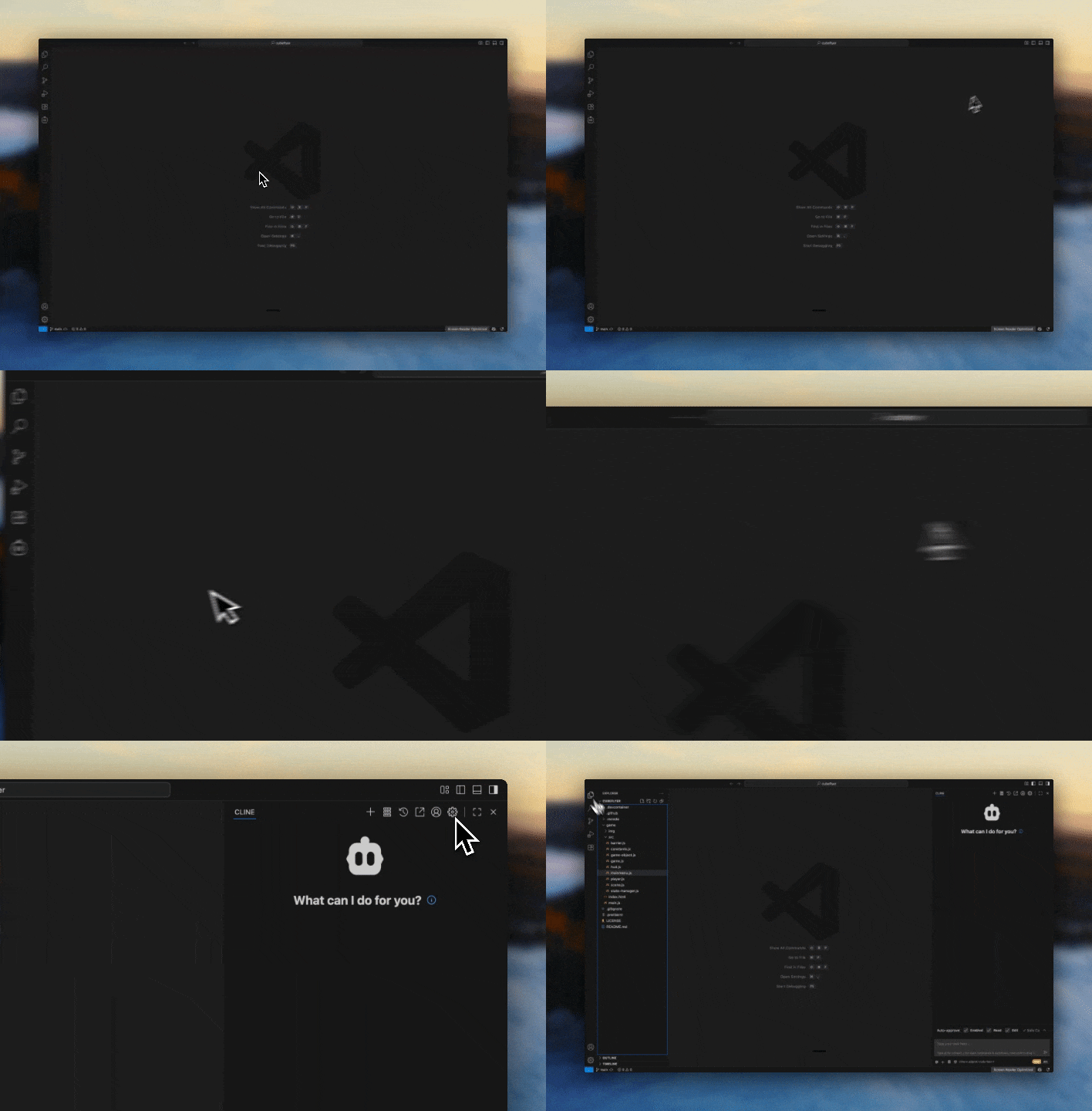
To open Careti in the right sidebar:
Align Extension View
Make sure your extension view is aligned vertically to the left
Open Right Side View
Click the button that opens the right side panel in VS Code (typically used to open GitHub Copilot chat). Optionally use the Option + CMD/Ctrl + B shortcut.
Drag Careti Icon
Drag the Careti icon over to the nav panel at the top of that right view
Cursor
To open Careti in the right sidebar:
Align Extensions
Cursor uses a horizontal activity bar by default to optimize space for the AI chat interface (see here for details). To switch to vertical:
- Open the Command Palette (
CMD/Ctrl + Shift + P) - Search for "Preferences: Open Settings (UI)"
- Search for
workbench.activityBar.orientation - Set the value to
vertical - Restart Cursor for the changes to take effect
Open the AI Pane
Click the Cursor cube icon button (AI Pane) that opens Cursor's agent (right side view panel)
Drag Careti to the AI Pane Sidebar
Drag the Careti icon directly into the AI Pane sidebar.
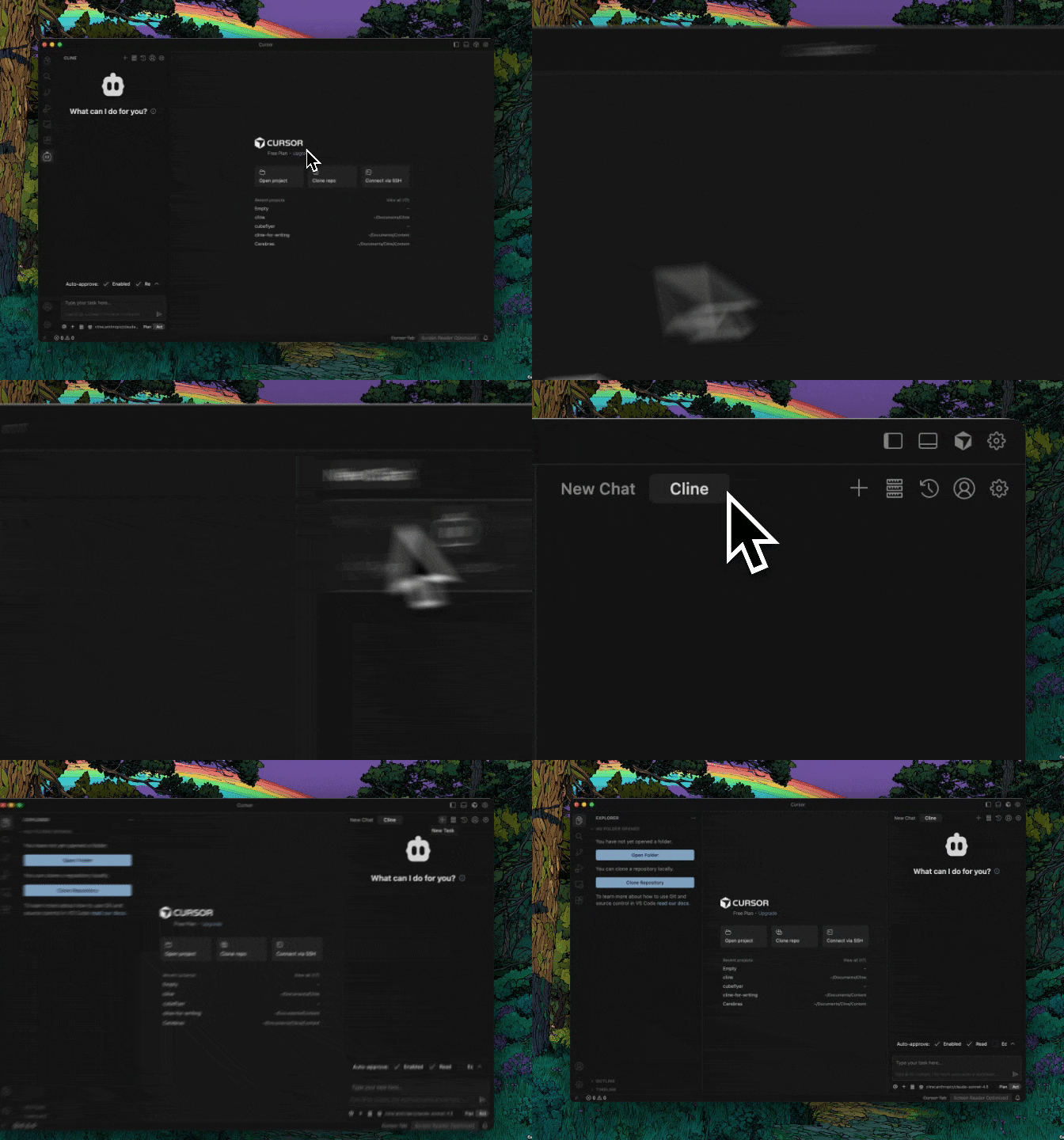
Once set up, Careti will load on the right side and you can use it as normal.